Remote to Vertex AI Workbench Instances over an IAP tunnel with VS Code
This post is also published in Medium
In this post you will learn how to use your VS Code client as IDE in your local development machine while using Vertex AI Workbench Instances as remote), all of that within a protected environment with an IAP tunnel.
Vertex AI Workbench Instances is the new enterprise-grade Jupyter notebook environment for data scientists. It’s currently in General availability (GA) in Google Cloud Platform. Main features include the following:
- Large number of hardware configurations, including multiple GPU types.
- BigQuery Browser/Query Editor: browse BigQuery Tables and author SQL from within the JupyterLab.
- Dataproc Support: run computations on Dataproc clusters and Dataproc Serverless Sessions.
- Notebook Executor: schedule the execution of notebooks on Training service.
- Idle Shutdown: saves money by automatically suspending idle notebooks.
- Google Cloud Theme: a new Google Cloud theme bringing a modern UI to JupyterLab.
- Org Policies: admins can set defaults and turn off features of Notebooks.
- Multi-kernel: users can leverage multiple research environments from a single instance and UI.
- Support for Sec4 horizontals (CMEK, AXT, DRZ, VPC-SC).
The steps below only apply to Vertex AI Workbench Instances, not to other type of notebook-related services, like managed notebooks.
You actually do not need an OAuth token, but private/public keys. You will also use Identity-Aware Proxy (IAP) to protect SSH access to the notebook VM via TCP forwarding. Using IAP, the VM instances containing the notebook don’t even need a public IP address.
These are the five steps:
Step 1:
Create the Vertex AI Workbench Instance, in my case with instance name my-vertex-iap-instance. Make sure you disable the external IP address. You can optionally configure GPUs in this step.
Step 2:
Once created, set IAP in your Google Cloud project. Click on IAP in the console and select SSH and TCP resources. Select the VM corresponding to your Vertex AI Workbench Instance. Follow the instructions here and make sure you set the proper permissions.
Step 3:
In your local dev machine, make sure gcloud config list returns the right project_id and credentials. In this case we can not automatically populate the config ssh file with gcloud compute config-ssh because we are using an internal IP address for our instance. We need to get the proper SSH configuration with this command:
gcloud compute ssh my-vertex-iap-instance --dry-run

# Output for Mac OSX:
/usr/local/bin/ssh -t -i /Users/rafaelsanchez/.ssh/google_compute_engine -o CheckHostIP=no -o HashKnownHosts=no -o HostKeyAlias=compute.6850135882903047257 -o IdentitiesOnly=yes -o StrictHostKeyChecking=yes -o UserKnownHostsFile=/Users/rafaelsanchez/.ssh/google_compute_known_hosts -o "ProxyCommand /usr/local/bin/python3 -S /Users/rafaelsanchez/Library/Application\ Support/cloud-code/installer/google-cloud-sdk/lib/gcloud.py compute start-iap-tunnel my-vertex-iap-instance %p --listen-on-stdin --project=argolis-rafaelsanchez-ml-dev --zone=europe-west4-a --verbosity=warning" -o ProxyUseFdpass=no admin_rafaelsanchez_altostrat_co@compute.6850135882903047257
Note the output of the previous command. We need to parse the fields into entries for the local SSH config file local (~/.ssh/config). We can do that automatically with the help of VS Code by clicking CMD+P (Mac OSX) or CTRL+P (Windows), select Remote-SSH: Add new SSH Host and paste the previous long SSH command (the one starting with /usr/local/bin/ssh -t -i [...]):

Then select the config file (in my case /Users/rafaelsanchez/.ssh/config):

A Host added message window should appear:
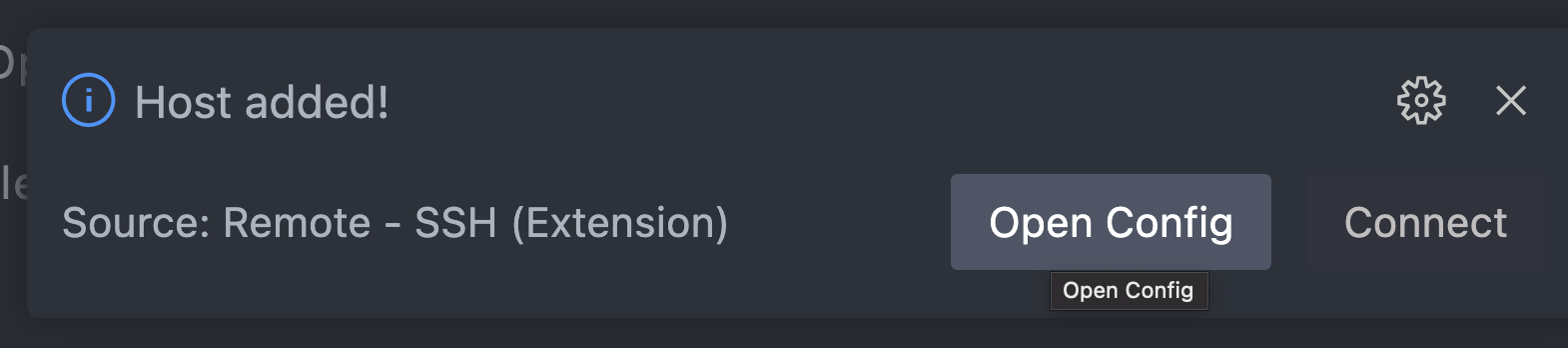
If you click Open Config, you can see the preliminary new entry that has been automatically added to ~/.ssh/config. You will need to make some manual corrections to that file in the next steps before connecting to the instance.
Host /usr/local/bin/ssh
    HostName /usr/local/bin/ssh
    IdentityFile /Users/rafaelsanchez/.ssh/google_compute_engine
    CheckHostIP no
    HashKnownHosts no
    HostKeyAlias compute.6850135882903047257
    IdentitiesOnly yes
    StrictHostKeyChecking yes
    UserKnownHostsFile /Users/rafaelsanchez/.ssh/google_compute_known_hosts
    ProxyCommand /usr/local/bin/python3 -S /Users/rafaelsanchez/Library/Application\ Support/cloud-code/installer/google-cloud-sdk/lib/gcloud.py compute start-iap-tunnel my-vertex-iap-instance %p --listen-on-stdin --project argolis-rafaelsanchez-ml-dev --zone=europe-west4-a --verbosity=warning
    ProxyUseFdpass no
Step 4:
In order to use the jupyter user of your notebook, you must create a public/private key and then upload public key to the remote instance. To create public/private key, you can do it in your local dev machine:
ssh-keygen -t rsa -f ~/.ssh/gcp-jupyter -C jupyter
chmod 400 ~/.ssh/gcp-jupyter
Place the private key to your local dev machine in ~/.ssh/gcp-jupyter. Upload manually the public key to Vertex AI Workbench Instances in ~/.ssh/gcp-jupyter.pub, renaming the file as ~/.ssh/authorized_keys.
Finally, you need to manually modify the jupyter user on your local ~/.ssh/config, under User and IdentityFile fields. You need also to modify the Host and HostName fields. The final entry will look like this:
Host my-vertex-iap-instance
    HostName compute.6850135882903047257
    User jupyter
    IdentityFile /Users/rafaelsanchez/.ssh/gcp-jupyter
    CheckHostIP no
    HashKnownHosts no
    HostKeyAlias compute.6850135882903047257
    IdentitiesOnly yes
    StrictHostKeyChecking yes
    UserKnownHostsFile /Users/rafaelsanchez/.ssh/google_compute_known_hosts
    ProxyCommand /usr/local/bin/python3 -S /Users/rafaelsanchez/Library/Application\ Support/cloud-code/installer/google-cloud-sdk/lib/gcloud.py compute start-iap-tunnel my-vertex-iap-instance %p --listen-on-stdin --project argolis-rafaelsanchez-ml-dev --zone=europe-west4-a --verbosity=warning
    ProxyUseFdpass no
Step 5:
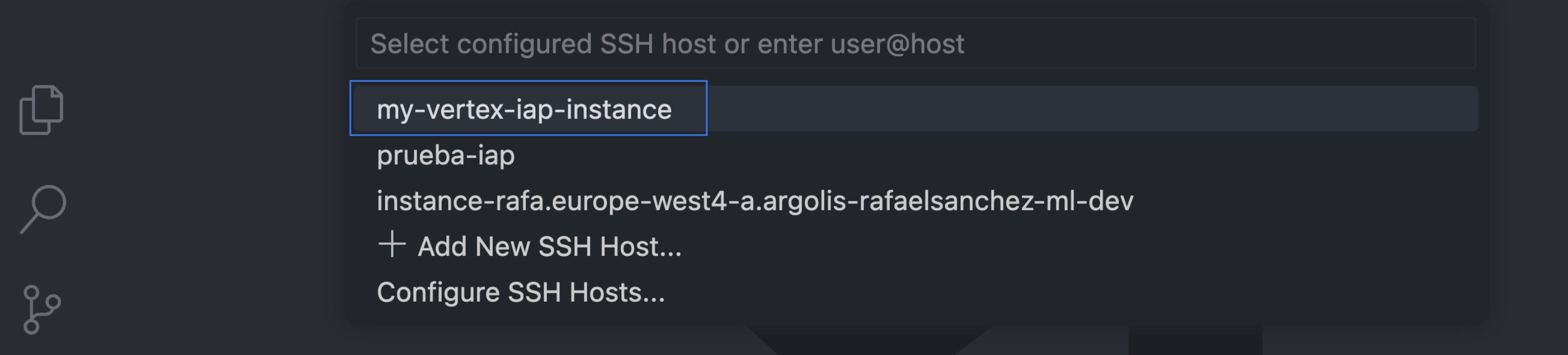
You are now ready to connect from VS Code via SSH. In VS Code, CMD+P (Mac OSX) or CTRL+P (Windows) and write Remote-SSH: Connect to Host and select the right notebook VM (in my case my-vertex-iap-instance):
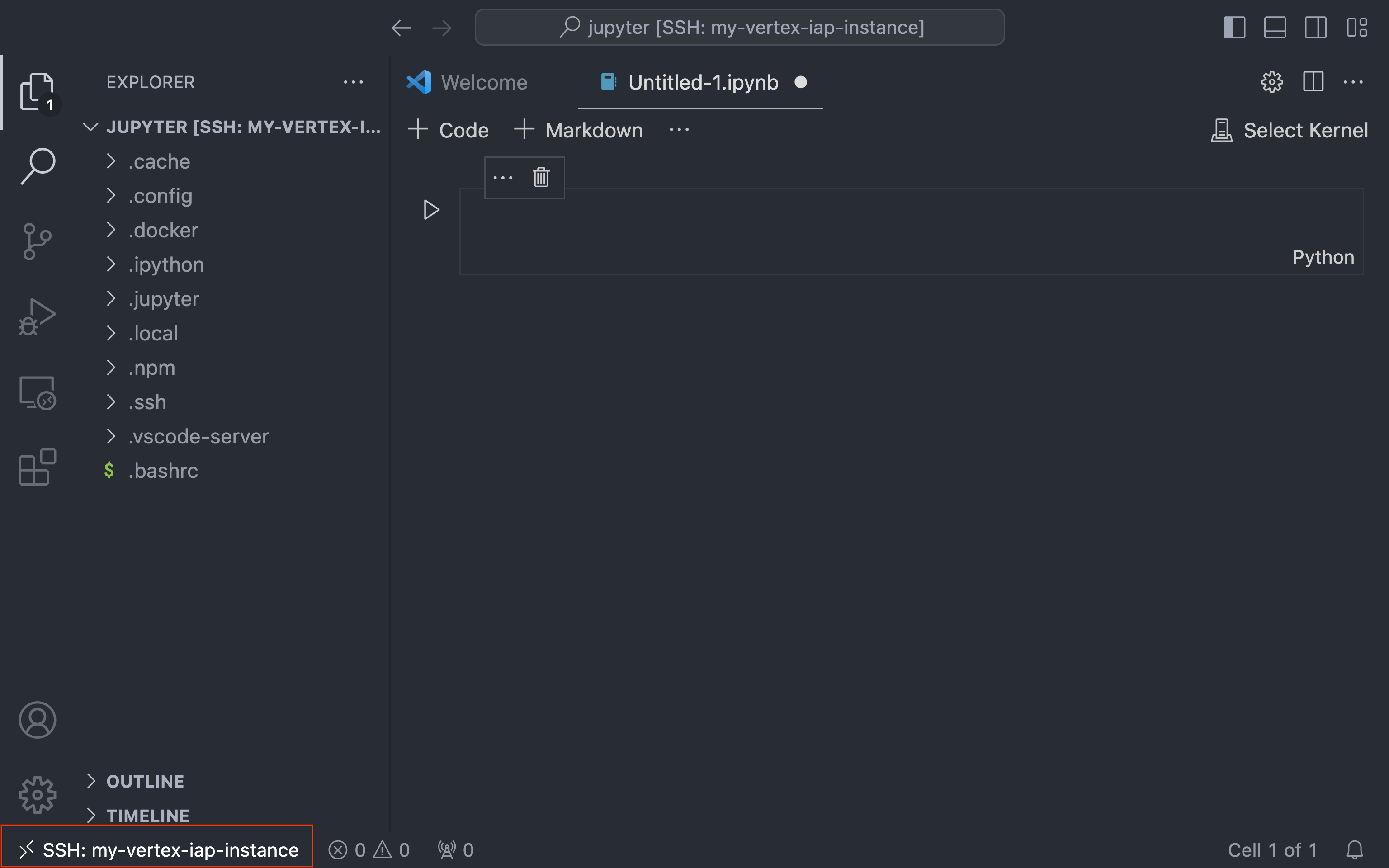
You should see SSH: my-vertex-iap-instance at the bottom left following a successfull connection:
Some notes: * Make sure you disable external IP address on Vertex AI Workbench Instances. * Make sure you rename the public key as .ssh/authorized_keys in the remote instance.
References
[1] VS Code documentation: Connect to a remote jupyter server
[2] Medium article: Remote to a VM over an IAP tunnel with VSCode
[3] Identity-Aware Proxy (IAP) overview
[4] Vertex AI Workbench Instances overview